How to change your VPN location on different devices


Many things depend on your location, such as pricing for goods and services, internet censorship, and content availability. At first, changing your location may seem impossible without traveling to the specific place. Luckily, a VPN (virtual private network) exists. It allows you to switch your IP address and make it appear as if you are in a different location.
Changing your virtual location with a VPN is fairly easy. Most of the time, you have to select a VPN service provider with a wide range of global server coverage and download it on your device. Then, choose a server and connect to the country you wish.
After testing many VPNs, my top VPN choices for changing your virtual connection are NordVPN, Surfshark, and Proton VPN. I found NordVPN to be the best overall due to a wide server fleet and advanced security features. Meanwhile, Surfshark offers an affordable alternative, and Proton VPN is the best for privacy. Continue reading for a detailed guide on how to change your virtual location with a VPN.
🏷️ LIMITED OFFER: NordVPN deal! Get 76% OFF NordVPN + 3 months FREE 🏷️

How to change VPN location on iPhone and Android
Using a VPN is the simplest way to change your IP address on a mobile device. However, not just any VPN will perform optimally, so before downloading the app, ensure that your chosen VPN offers robust encryption, like AES-256 or ChaCha20, modern tunneling protocols like WireGuard or OpenVPN, a kill switch, and IP & DNS leak protection.
A VPN works by changing your IP address without affecting the GPS location of your mobile device. In most cases, this is a very convenient trait as the majority of sites and services determine your location via IP address, while your iPhone or Android device uses GPS to know where you are. However, certain applications, like Pokemon Go, also use GPS location services, and to change your location in the app, you will need a VPN and a GPS spoofing app.
Step 1. Download a VPN provider with a large server network
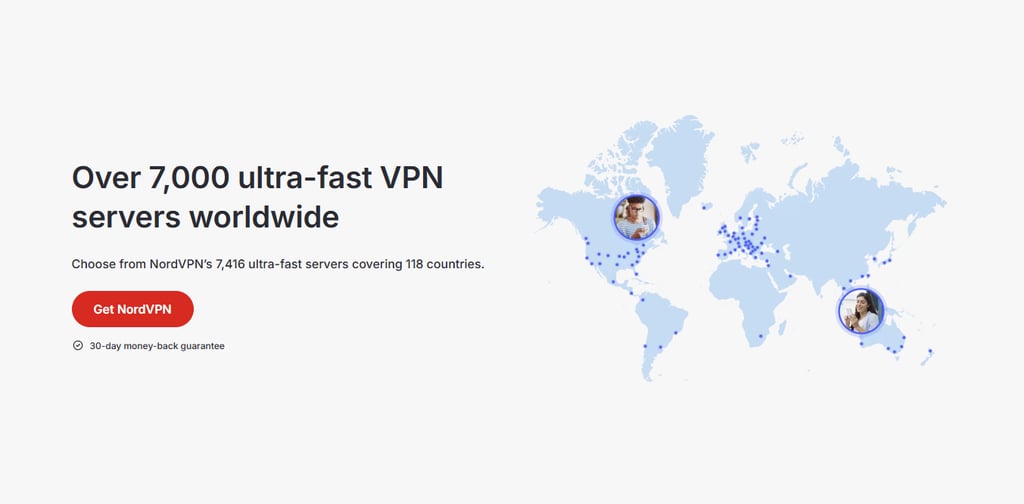
A large server network is important for always finding the exact connection spot you’re looking for. A large number of available servers ensures you’ll never run into connectivity issues due to congestion. I recommend NordVPN as the best VPN to change your location on iPhone or Android because it has over 9,300 high-speed servers in 137 countries, so you’ll always be able to find a server in your desired location. Depending on your device, you can download the NordVPN app from the Apple App Store or Google Play Store.
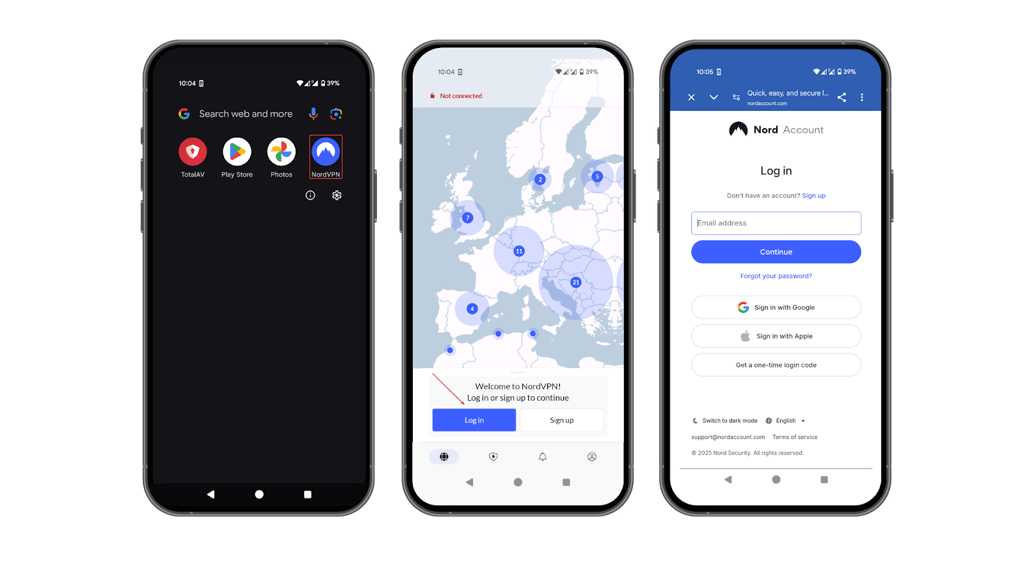
Step 2. Install the VPN app on your device and log in
Installing the VPN app on a mobile device usually simply consists of downloading the app and launching it. If any additional steps are needed, your provider will have instructions, or you’ll get notifications requiring you to perform certain steps. Once the app is installed, you may need to register an account or subscribe to a paid plan before logging in.
During the VPN installation process, the app may ask to grant it certain permissions for optimal performance, such as to modify system settings (Android), storage access (Android), network access (iOS), background app refresh (iOS), and others. You should always grant these permissions if you want your VPN to perform at its best.
Lastly, some VPNs, like Proton VPN, may ask for email verification when creating a new account.
Step 3. Connect to a preferred VPN server
Most VPNs display their available servers’ list on the main app page, provide an interactive map from which to choose the location, or offer a quick connect feature that connects you to the fastest available server based on your location and other factors.
If you’re choosing a server from the list, simply pick the one in your desired location and connect. So, to access the US Netflix library, connect to a server in the US and if you’d like to stream on the BBC iPlayer, use a UK server. Remember that your new virtual location and IP address will match the server’s you are connected to.

Wondering how to check my VPN location? To do so, head to the ipleak.net page and see whether the location shown on the page matches the location of your chosen server. If not, try switching servers and checking again.
How to change VPN location on Mac and Windows
Due to the operational system architecture and the possibility of introducing advanced features, desktop VPN apps generally offer more features and more control than mobile apps. Such features might include split tunneling, custom protocol selection, dedicated IP, multi-hop, and more, all meant to enhance your experience and boost your privacy.
Below, you’ll find a detailed guide on how to change VPN location on Mac and Windows.
Step 1. Download a reputable VPN that suits your needs and budget
If you’re looking to use the full power of a VPN, then using it on the desktop is a very good idea, as such apps often include more advanced features like split tunneling and double hop. However, I always recommend choosing a trustworthy VPN provider and downloading the app only from its official website or a reliable app store. One such VPN is NordVPN, as it has a five-time verified no-logs policy, offers a wide server net, and an ultra-speedy WireGuard-based NordLynx tunneling protocol.

Step 2. Log in and navigate to the server list or map
After downloading and installing the VPN app on your device, launch it and log in to your account. Once the app is loaded up, you’ll be able to find the available servers’ list displayed on the main window of the interface. Additionally, you might also see an interactive server location map or find a quick connect feature, which will automatically connect you to the fastest available server depending on your location.
Usually, you can filter the available servers by location, speed, specialty, and in some cases, pick a connect point on a city-level. While this option isn’t very common, you can find it on NordVPN US and UK servers. Such level of customization is very important for bypassing local blackouts, accessing some government pages, or gaining a specific IP address.
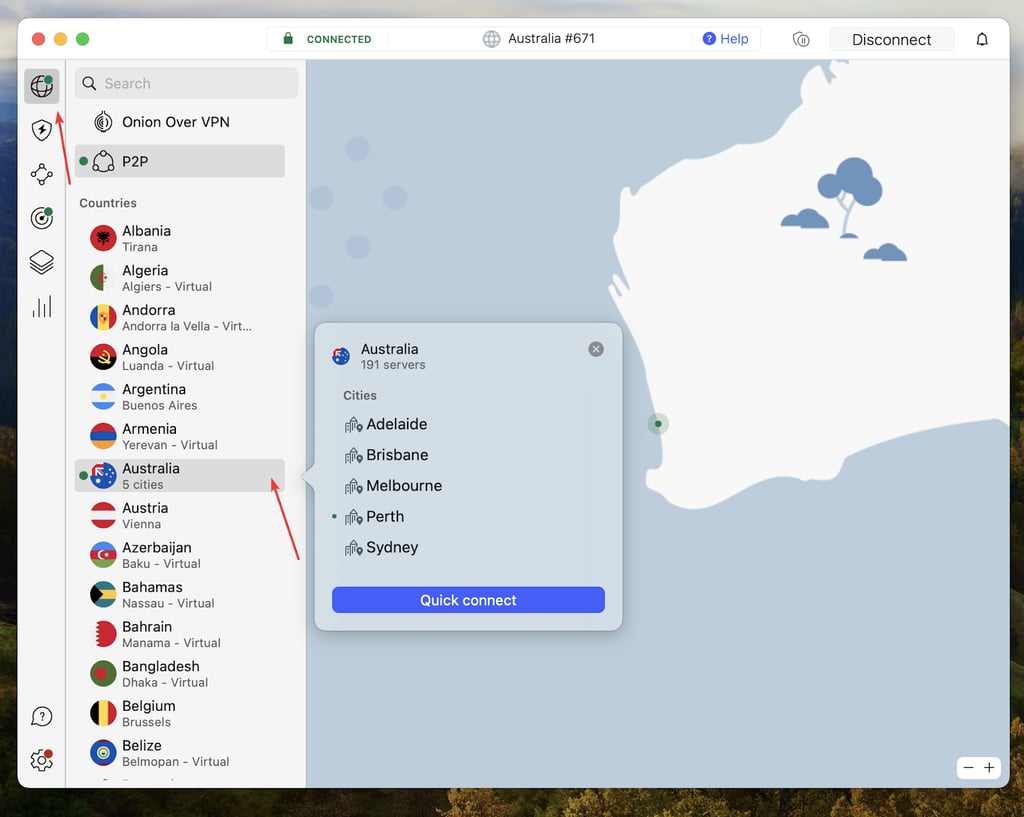
Step 3. Select your preferred VPN server location and click Connect
Once you’ve chosen your desired server, either from the list or on the interactive map, click on it to connect. If you’re looking to simply encrypt your traffic and experience optimal performance, choose a nearby server, as it will always be the fastest. If you want to unblock geo-restricted content in a specific region, connect to a server located there. So, for instance, if you want to unblock DAZN Italy, select an Italian server, or if you want to access Hulu, connect to a server in the US.
Filtering servers on their specialty can also optimize the performance of the service. For instance, if you’re planning on streaming, then choose a streaming-optimized server, and if you’re about to head to a torrenting site, choosing a P2P-optimized server might be a good idea. Alternatively, some servers may be optimized not for performance but for enhanced security, such as obfuscated servers, double hop, and Tor over VPN.

Why does my VPN not change my location?
VPNs work by encrypting your network traffic and routing it through a server in a different location. This effectively changes your IP address to appear as if you’re connecting from that server’s location.
However, your device’s GPS and other location services, like Wi-Fi triangulation, use methods different from the IP address to determine your real-time location, and a VPN cannot alter that. To sum it up, while a VPN can effectively change your IP address, it’s incapable of altering your device’s GPS location or other location services.
Here are the most common reasons why you might still see your original location even though you’re using a VPN:
- GPS override. If your device’s GPS is enabled, it will continue to report your current actual location, despite the fact that you’re using a VPN and your IP address has changed. You can try disabling your device’s GPS if there’s such a possibility. If not, you may want to look into GPS spoofing apps or rely on Surfshark’s GPS spoofing feature, available for Android devices.
- App and service behavior. Certain apps and services may be using GPS or other location data even when you are connected to a VPN server. This can cause discrepancies in your reported location, and to solve it, you might also need to use a GPS spoofing app.
- Browser cookies and cache are giving away your location. Browser cookies and cache are excellent in making your browsing experience smoother, but if you’ve neglected to clear them for a while, they may be giving away your true location even while using a VPN. If that’s the case, simply clear out browser cookies and cache, reconnect to VPN and check if it helped.
- VPN server isn’t working properly. Overcrowded servers or servers in poor working shape might not be able to hide your real IP address. If you suspect that’s the case, switching to another server should fix it.
- VPN leak. In some cases, a VPN might be leaking your original IP address, making it visible to the websites you are visiting. To check for IP leaks, you can do a test on ipleak.net. To avoid leaks, you can try choosing a different tunneling protocol or a server, but if it continues to happen, I recommend switching to a premium VPN, like NordVPN, that will ensure your real IP address is always well hidden.
Change your location with NordVPN
Best VPNs to change your location in 2026
| VPN that lets you choose location | Rating | Number of servers | Countries | Speed | Monthly price | Free trial |
| 1. NordVPN | 9.8 ⭐⭐⭐⭐⭐ | 9,300+ | 137 | 468Mbps | $3.09/month | ✅Yes, 7-day free trial |
| 2. Surfshark | 9.5⭐⭐⭐⭐⭐ | 4,500+ | 100 | 466Mbps | $1.99/month | ✅Yes, 7-day free trial |
| 3. Proton VPN | 8.6⭐⭐⭐⭐⭐ | 20,075+ | 145 | 428Mbps | $2.99/month | ✅Yes, free version |
Before picking my top 3 VPNs to change location, I put them through rigorous testing, which included evaluating their server lists, checking their security features, and assessing their geo-unblocking capabilities. In the end, I picked NordVPN, Surfshark, and Proton VPN as the best VPNs for changing virtual locations. Here’s why:
- NordVPN – offers a wide RAM-only server list in over 137 locations. I found its advanced feature set to be close to the best, plus it passed all of my IP, DNS, and WebRTC leaks failproof.
- Surfshark – an excellent VPN to change your location, especially if you’re looking for something very affordable and with unlimited connections. Although it has a smaller server fleet, they’re all well-functioning and fast due to the WireGuard protocol.
- Proton VPN – perfect location change VPN for anyone concerned about privacy. The provider undergoes yearly no-logs policy audits and offers such privacy features as Secure Core and Tor over VPN servers.
![NordVPN winner logo [IN USE]](https://media.vpnpro.com/images/160x40/2025/01/NordVPN-winner-banner-logo.png)


Since 2018, VPNpro has delivered unbiased, expert-backed insights through in-house research and thorough VPN testing. Our team ensures every review is fact-checked and reliable. Learn how we maintain these high standards in our testing methods.
Is it legal to change your VPN location?
Using a VPN to change your location is perfectly legal in most countries, including the US, Canada, and most of Europe. However, some countries, like the UAE, China, Russia, and Turkey, restrict VPN use. Some countries restrict their use without any serious legal consequences, while some countries may impose fines for VPN use. For more information and the legal status of VPNs in your country, you can refer to our guide.
Remember that using a VPN to bypass geo-restriction may violate a service’s Terms of Conditions (for example, Netflix), and employing a VPN to obtain pirated content or commit fraudulent activities is illegal in almost all countries worldwide.
Benefits of using a VPN to change location
Changing your virtual location with a VPN enhances your online privacy, may get you better prices for goods and services when shopping, and bypasses even the most severe internet censorship. Additionally, using a VPN to change your location is the easiest and most secure way to do it.
Here’s a more detailed list of the benefits of using a VPN to change location:
- Access geo-restricted content. Many streaming services and websites are geo-locked to a certain region and unavailable unless you’re accessing them from those specific places. Connecting to a VPN server in that region will allow you to bypass these geo-restrictions.
- Enhance privacy. A VPN encrypts your traffic with robust protocols, such as AES-256 or ChaCha20, making it close to impossible for your ISP or other onlookers to track your online activities.
- Improve connection speeds. Sometimes, connecting to a VPN server in a different country can enhance your connection speeds, especially if that server is close to the content you’re trying to access. Additionally, a VPN can help bypass ISP bandwidth throttling, which may also increase your speeds.
- Bypass internet censorship. Using a VPN and connecting to a server outside the censorship area can help you bypass these government-imposed restrictions and access blocked websites and content.
- Anti-tracking protection. A VPN can make it harder for websites and advertisers to track your location and online activity by masking your real IP address.
Experience VPN benefits with NordVPN
What VPN location should you choose?
Choosing the best VPN location depends on the activity you have in mind. For instance, unblocking geo-locked content will require connecting to a server in that specific location, while to bypass censorship, you will need to choose a location where the restrictions do not apply. Below, you’ll find a handy table with VPN use cases and which locations are the best for them:
| VPN use case | Recommended VPN location | Why | Moreinformation |
| Enhanced privacy | Switzerland, Iceland, the Netherlands | These countries operate under strict privacy laws and no data retention policies, providing the highest level of privacy | Most secure VPN services |
| Streaming US content | United States (NY, LA, and other US locations) | Connecting to a US-located server can help you unlock local streaming platforms, such as Netflix, Hulu, Max, ESPN, and more | Best VPNs for US use |
| Streaming UK content | United Kingdom (London, Manchester, Edinburgh) | Enables you to access UK-specific streaming sites like BBC iPlayer, UK Netflix, and other geo-locked services | Best VPNs for the UK |
| Gaming (low latency) | Choose the nearest server to your physical location | Connecting to a server near you minimizes ping and lag and provides you with smooth gameplay | Best gaming VPNs |
| Bypass censorship | Singapore, Hong Kong, Switzerland | Connecting to these locations allows one to bypass censorship in countries like Iran, China, and Russia, ensuring access to free internet | What is internet censorship and how to bypass it |
| Accessing European content | Germany, France, Ireland, the Netherlands | Great for accessing geo-restricted European content and streaming services like RTE Play, ZDF, and RTL+ | Best European VPNs |
| Accessing Australian content | Australia (Sydney, Melbourne) | Connect for accessing Australian streaming services, like Stan, Foxtel, and others | Best Australia VPNs |
| Accessing Canadian content | Canada (Toronto, Vancouver) | Works best for unblocking Canadian content, including Crave and CBC Gem | Best Canada VPNs |
As you can see from the table, there are a few specific locations that are the best for enhanced privacy, including Switzerland and Iceland. To unlock US, UK, European, Australian, and Canadian content, you will have to connect to a server located in those regions, whereas for the best gaming experience, it’s good to choose a server that’s closest to you.
Access geo-blocked content with NordVPN
Is there a completely free VPN to change location
Most free VPNs are highly unreliable due to crippling daily data limits, slow connection speeds, and unclear logging policies. In fact, some free VPNs might even be dangerous to use as they could be selling your data to undisclosed third parties. In the worst-case scenario, the free VPN apps may be infected with malware, and downloading such apps could infect your device.
Instead of picking out some random, potentially dangerous free VPN, I recommend using a reliable freemium VPN, like Proton VPN. The service’s free version is just as reliable as the premium one, and while it limits possible connection sites to just 5 countries (Romania, Poland, the Netherlands, Japan, and the US) and access to some advanced features, it comes with no data or bandwidth caps. Alternatively, you can choose a fully featured premium VPN, like NordVPN or Surfshark, and use them for free during the offered 7-day free trials.
Conclusion
If you want to change your virtual location, you will need a reliable VPN service. Download the app on your device and follow the on-screen instructions for installation if needed. Log in or create a new account to start using the app. Then, simply select a server in your desired location and connect. A VPN will instantly change your virtual location.
The best VPN to change your virtual location is NordVPN. Thanks to its huge server fleet spread across 126 countries, you will be able to reach almost every corner of the Earth. In addition, it offers one of the fastest connection speeds for a truly smooth browsing experience. Lastly, NordVPN is excellent at bypassing geo-blocks, which is useful for accessing restricted content and overcoming internet censorship. You can try NordVPN commitment-free today, as all your purchases are protected with a 30-day money-back guarantee.

![Surfshark weekly deals logo [IN USE]](https://media.vpnpro.com/surfshark-weekly-deals.svg)
![Proton VPN winner logo [IN USE]](https://media.vpnpro.com/2025/05/protonvpn-winner.png)
FAQ
Can you hide your location with VPN?
Yes, you can hide your location with a VPN. It is possible because a VPN assigns you a new IP address once you connect to a server in another country. Since the IP address is tied to the desired location, your virtual location will change as well. However, a VPN is incapable of overriding your device’s GPS tracking and other location services.
Which VPN is best for hiding location?
The best VPN for hiding your virtual location is NordVPN. It offers a wide server fleet, meaning you can select from many countries. In addition, it provides a strong security suite, protecting you from accidental data exposure. Plus, it has a 5-times verified no-logs policy, so you can rest assured that your data remains private.
Does a VPN change 'Find My iPhone' location?
No, a VPN will not change your ‘Find My iPhone’ location since it is tied to your device. Apple uses GPS and Wi-Fi to determine your location instead of just your IP address. To change your device location, you will also need to use an additional GPS spoofing app.
Does a VPN make you untraceable?
Yes, a robust and reliable VPN will make you untraceable. Trustworthy VPNs, like NordVPN, use advanced settings to keep your information private and undetectable. However, other VPN services may still leak your information and leave opportunities for your ISP or government to track you.
How often does VPN change IP address?
Many VPNs give you a new IP address every time you connect to a server, even if it is the same one. To maintain the same IP address, you need to get a dedicated IP, which is exclusively yours. Many VPNs offer this service. Alternatively, you can use Surfshark’s Nexus-powered IP Rotator feature, which changes your IP address every 5 to 10 minutes.


